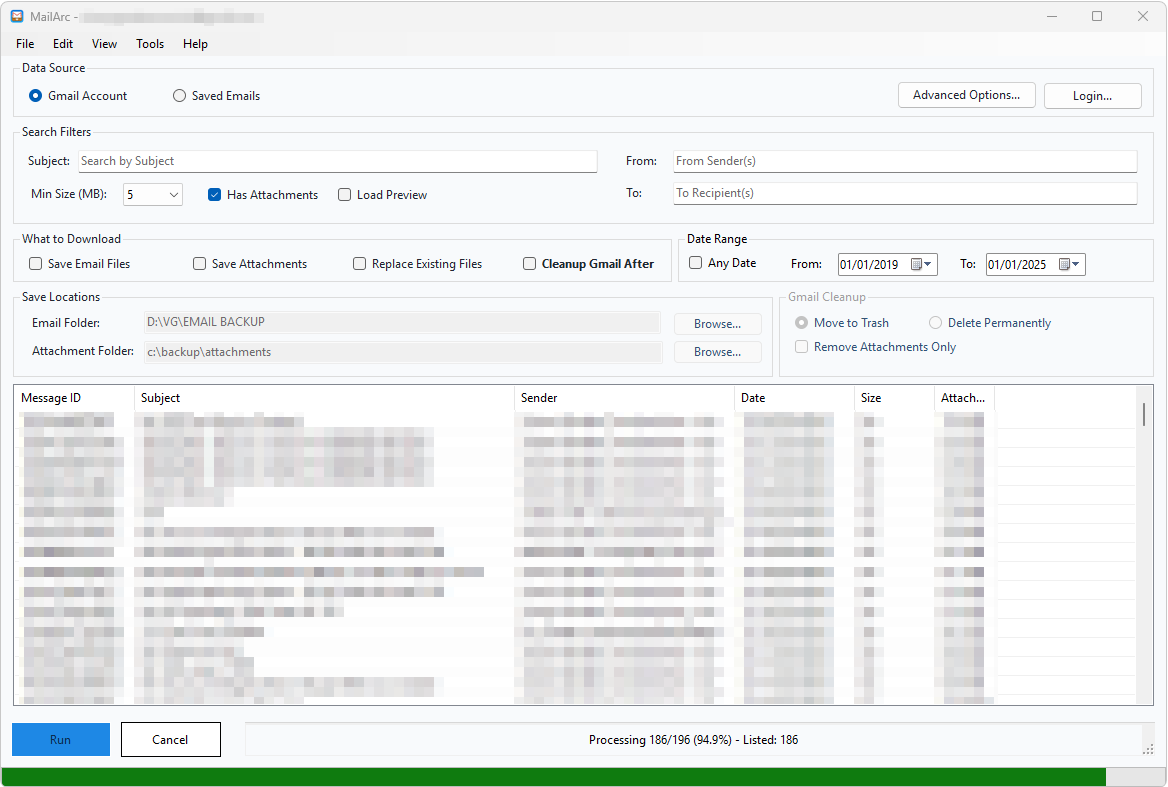
Application Overview
MailArc supports two data sources:
- Gmail Account: search mailbox data with filters and optionally download matching content.
- Saved Emails: load `.eml` files from a local folder to browse and preview archive content without querying Gmail.
Getting Started
- Start MailArc.
- Select a data source.
- If using Gmail mode, authenticate with your Gmail address.
- Set search filters and download options.
- Select folders for saved emails and/or attachments.
- Click Run (Gmail) or Load (Saved Emails).
- Review results in the email list.
Authentication
- Click Login or use Tools > Login / Authenticate.
- Enter the Gmail address you want to use.
- Complete Google sign-in and permission flow.
- The app verifies the authenticated account matches the entered email.
Tokens are saved locally under Windows local app data for MailArc. To clear a token, use Tools > Clear Auth Token.
Gmail Account Mode
- Select Gmail Account in Data Source.
- Login if not already authenticated.
- Configure filters, download options, folders, and optional cleanup.
- Click Run and monitor status and progress.
- Review matched messages in the email list.
Search Filters
- Subject / From / To: match by text or comma-separated addresses.
- Min Size (MB): filter by message size (0 to 30 MB).
- Has Attachments: include only emails with attachments.
- Load Preview: pre-download full content so previews open immediately.
- Any Date: disable date filtering, or set explicit From/To dates.
What to Download
- Save Email Files: export matching emails as `.eml` files.
- Save Attachments: export attachments to the chosen folder.
- Replace Existing Files: overwrite existing files; if disabled, use numbered names.
- Cleanup Gmail After: run cleanup actions after processing.
Save Locations
Email files are saved in date-based folders:
EmailFolder\Year\Month\Day\message-file.eml
Attachment names are sanitized for Windows compatibility and include date details; duplicates receive counters.
Gmail Cleanup Options
- Move to Trash: move matched messages to Gmail Trash.
- Delete Permanently: permanently remove matched messages.
- Remove Attachments Only: replace message with body-only copy, then delete original.
Recommended flow: run once without cleanup, verify results, save backups, then run cleanup with the same filters.
Saved Emails Mode
- Select Saved Emails in Data Source.
- Choose a folder containing `.eml` files.
- Click Load to scan files and subfolders.
This mode does not query Gmail and cannot perform Gmail cleanup.
Email List, Preview, and Actions
Email list columns: Message ID, Subject, Sender, Date, Size, and Attachments. Double-click to preview message details and attachment lists.
Available actions include copy subject/message ID/sender and save selected email as `.eml`.
Advanced Options, Settings, and File Rules
Advanced Options provides controls for save/export behavior, preview loading, cleanup actions, and reset to defaults.
Settings are saved locally (paths, filters, options, source mode, selected account), automatically on close or manually via File > Save Settings.
Filenames are sanitized for Windows rules, long names are trimmed, reserved names are handled, and collisions use counters.
Troubleshooting
- Authentication fails: verify account address, clear token, sign in again.
- No messages found: reduce size threshold and loosen filters.
- Email folder required: set Email Folder when saving `.eml` files.
- Attachments not saved: confirm option and folder are set, and files are downloadable.
- Preview unavailable: enable Load Preview or fetch while authenticated.
- Cleanup incomplete: inspect status for permission/network/message-state errors and rerun carefully.
Best Practices
- Test and confirm filters before enabling cleanup.
- Save `.eml` backups before deleting or stripping attachments.
- Prefer Move to Trash before permanent deletion when possible.
- Keep archive folders organized and backed up.
- Use specific filters (sender, subject, size, date) for cleanup jobs.